
How to Use Teleprompter on Zoom: 3 Modes to Shine in Your Meetings
Do you know that feeling of nervousness before an important presentation on Zoom? Where every word counts, but the worry about forgetting the script or losing eye contact with the camera haunts you? You are not alone. Digital communication requires more than just presence; it requires connection.
In this practical guide, we'll show you how PromptNinja becomes your invisible tool of authority. Forget sticky notes on the screen or wandering eyes to other monitors. Discover the 3 essential modes of setting up your teleprompter for meetings and webinars, ensuring you deliver your message with fluidity, always keeping your gaze fixed on who matters most: your audience.
"What if you could read your full script, word for word, while looking directly at the camera, maintaining an authentic and unshakable connection with your audience?"
With PromptNinja, the virtual teleprompter created to transform your interactions on Zoom, this reality is within your reach. Forget improvisations and worries. Our innovative software integrates perfectly with your meetings, lives, and webinars, allowing you to deliver your message with the fluidity, charisma, and confidence of an experienced professional.
Start Glowing on Zoom Now!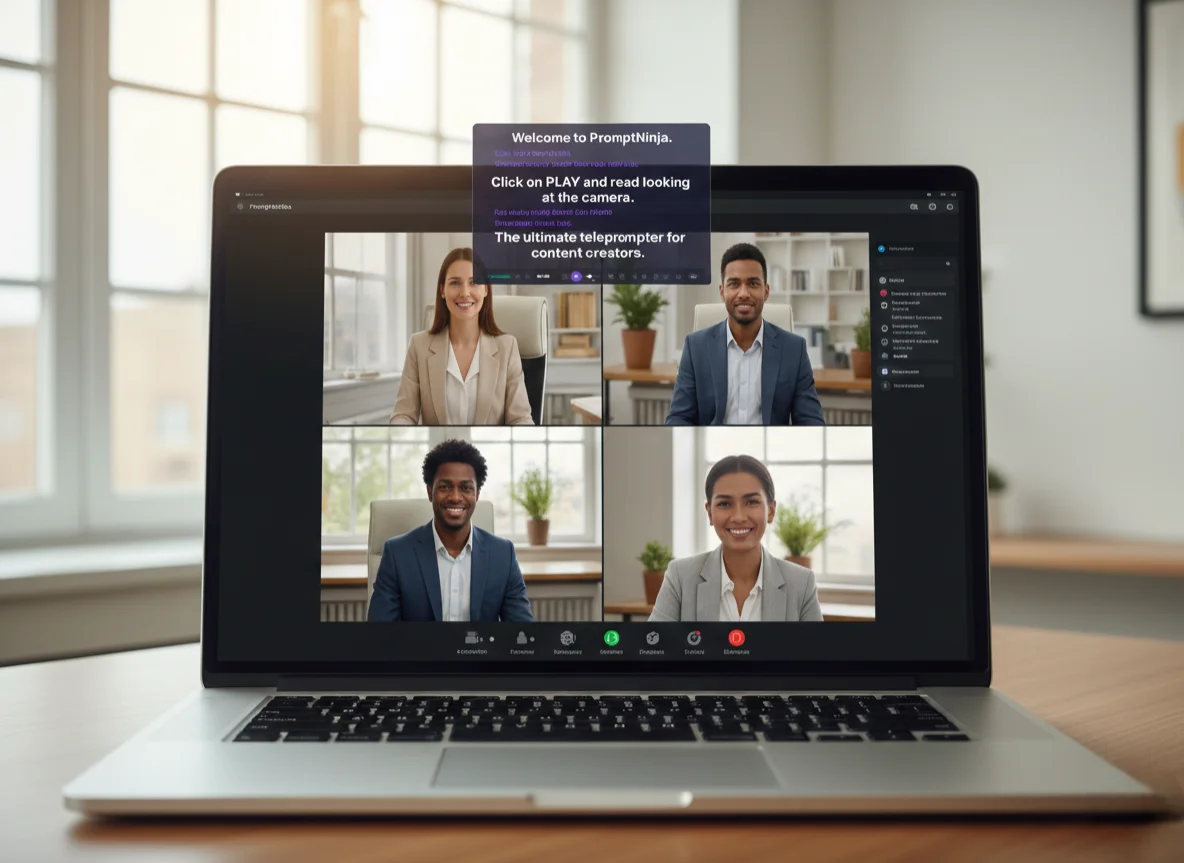
The Secret to Fluidity: Why PromptNinja's P2P Remote Control Doesn't Lag on Zoom
Imagine this: you're live on Zoom, your internet fluctuates, and the teleprompter freezes. Panic. With PromptNinja, this doesn't happen.
We use WebRTC (P2P) technology that creates a "local tunnel" between your phone and PC via Wi-Fi. The result? Zero Latency. Even if your internet is slow or unstable, the remote control responds instantly. You control the pace, not the server lag.
The Psychological Problem of the "Wandering Eye" in Video Calls
In a digital business environment, trust is the most valuable currency. In important sales meetings, job interviews, or executive presentations, direct eye contact is interpreted by the human brain as a sign of honesty, preparedness, and authority. When your eyes wander to read a script from paper or a side window, you involuntarily project an image of being unprepared, nervous, or even disinterested.
The technical solution is elegantly simple, but its execution is crucial: position the text as close to your webcam as possible. This minimizes eye movement, making the reading virtually undetectable to the audience.
Did You Know?
Communication studies indicate that over 55% of a message's impact is conveyed through body language, including eye contact. In video calls, where the body is only partially visible, the eyes carry even greater weight in communication.
The Ultimate Step-by-Step Guide for a Perfect Online Presentation
O que você vai precisar:
Ferramentas
- Zoom or Teams
- PromptNinja
- Webcam
Step 1: Strategic Positioning
Step 2: Optimized Text
Step 3: Invisible Remote
Step 4: Focus Mode
Universal Compatibility: Freedom to Present
The beauty of PromptNinja lies in its simplicity and universality. Because it runs directly in the browser, it is independent of any video conferencing platform. There is no need to install plugins, extensions, or deal with complex integrations. It works as a visual layer "above" your meeting, visible only to you.
- Zoom: Ideal for webinars, classes, and large audiences.
- Microsoft Teams: Perfect for the corporate environment and formal presentations.
- Google Meet: Great for quick calls, interviews, and team meetings.
- Skype, Discord, Slack: Works perfectly on any application that uses your camera.
Crucial Reminder: You do not need to share your screen for the teleprompter to work. It is a tool for your eyes only. If you need to show a presentation, share only the specific window (PowerPoint, Google Slides, PDF) and keep PromptNinja floating discreetly at the top, visible only to you.
Pro Tip: Transparent Teleprompter in Zoom with OBS (Chroma Key)
Want an even higher level of professionalism? You can make the text float "magically" on your screen using OBS Studio.
- Open PromptNinja and switch the theme to Chroma Green or Chroma Blue.
- In OBS Studio, add the browser (Browser Source) with your teleprompter link.
- Apply the Chroma Key effect filter to remove the colored background.
- Start the Virtual Camera in OBS and select it as your camera in Zoom/Teams.
This allows you to see your slides and audience *through* the text, just like a real news broadcast.
Common Mistakes to Avoid So You Don't Sound Like a Robot
- Monotonous Reading: The teleprompter is a guide, not a sentence. Use pauses, vary your tone of voice, and add emphasis to sound natural. Breathe!
- Lack of Practice: Never read a script for the first time live. Practice beforehand to familiarize yourself with the flow of the text and mark points of emphasis.
- Inappropriate Speed: Scrolling too fast creates anxiety; too slow, monotony. Use the remote control to adjust the speed in real-time, matching your speaking pace.
- Forgetting Body Language: Your eyes are on the camera, but what about the rest of your body? Gesticulate with your hands, smile, and use facial expressions to complement your message.
Advanced Digital Etiquette and Performance Tips
Professional Lighting
Good frontal lighting (like a ring light) eliminates shadows and creates a professional appearance. The reflection from the white teleprompter screen can help, but a dedicated light is transformative.
Camera Angle
The camera should be at eye level. If using a laptop, stack books under it. A low camera (filming from below) can convey arrogance, while a very high one can suggest submission.
Audio Quality
Bad audio can ruin the best of presentations. Use an external microphone (lavalier or USB) whenever possible. Your message will be heard with clarity and professionalism.
Background
Choose a neutral and organized background. Avoid windows with too much light or cluttered environments. A tasteful virtual background is also a valid option if your real environment is not ideal.